
Evolution of the accessibility landscape
It's an exciting time to work in the world of digital accessibility! It was only a few years ago that finding an open role as an accessibility specialist could prove difficult – especially if you were looking at companies in the private sector. In some cases, there may have been open positions, but they were either part-time roles tacked on to a "regular" technical jobs and/or lumped in with the UX department. Now I'm seeing many more stand-alone opportunities in digital accessibility at Fortune 500 companies like Microsoft, Google, Target, JPMorgan Chase, Prudential, and many others.
I feel this shift in accessibility efforts is in one part due to awareness and one part due to education. Of course, I'm not naive to think lawsuits haven't played a part in this – according to Usable Net (opens in new tab) there are over 40 new accessibility lawsuits per week with over 2200 total lawsuits filed in 2018 – but I'd like to hope that is just a small part of the equation. While lawsuits may initially unlock the door for digital accessibility, once more tech professionals and companies learn about the value of adding inclusivity to their products, the hope is that the door remains unlocked and open to change for all – not just when forced by litigation.
As part of my job at Deque, I have been lucky enough to be a member of the instructor-led training (ILT) program (opens in new tab). Deque's ILT team has been very busy giving both in-person and virtual training sessions all over the world. Throughout my recent travels, I have gathered a list of questions from the designers and developers on the ground. Regardless of the company size or industry, you might be surprised to learn that many of their questions overlap. Below are the top five questions that I hear most often and some context/resources to learn a bit more about each.
What accessibility rules should I pay attention to?
To kick-off each training session, we like to ask the audience: "What is the first thing you think of when you hear the word accessibility?" We ask this question to establish a rapport with the audience and get them engaged from the start, but also we do this to gauge their familiarity with accessibility. Of course, there is a wide variety of responses, but the one thing I always seem to hear is: "I'm confused about which guidelines to follow." There is some major confusion on what accessibility regulations companies are required to follow in general, but specifically in regards to WCAG. With the release of WCAG 2.1 into the mix this past year, it is even more perplexing to beginners.
WCAG is an acronym for Web Content Accessibility Guidelines and version 1.0 (opens in new tab) was published way back in 1999 by the World Wide Web Consortium (W3C). The original focus was only on HTML and ultimately created to bring standardization to accessibility on the emerging web. In late 2008, version 2.0 (opens in new tab) of WCAG was released into the wild. This version was not technology-specific and covered many more aspects of disabilities, including blindness and low vision, deafness and hearing loss, learning disabilities, cognitive limitations, limited movement, speech disabilities, photosensitivity, and more.
Fast forward a few years to 2018 and we see another evolution in WCAG with version 2.1 (opens in new tab). Due to technological advancements and deeper understanding of user needs, the changes to WCAG 2.1 were focused on accessibility with mobile/tablet devices, users with low vision, and users with cognitive disabilities. WCAG 2.1 is considered to be an extension of WCAG 2.0, not a replacement.
The WCAG guidelines can get really complicated, really fast…so for newbies, I try to focus on the actionable parts of the guidelines, namely the P.O.U.R. concepts (opens in new tab) – Perceivable, Operable, Understandable, and Robust.
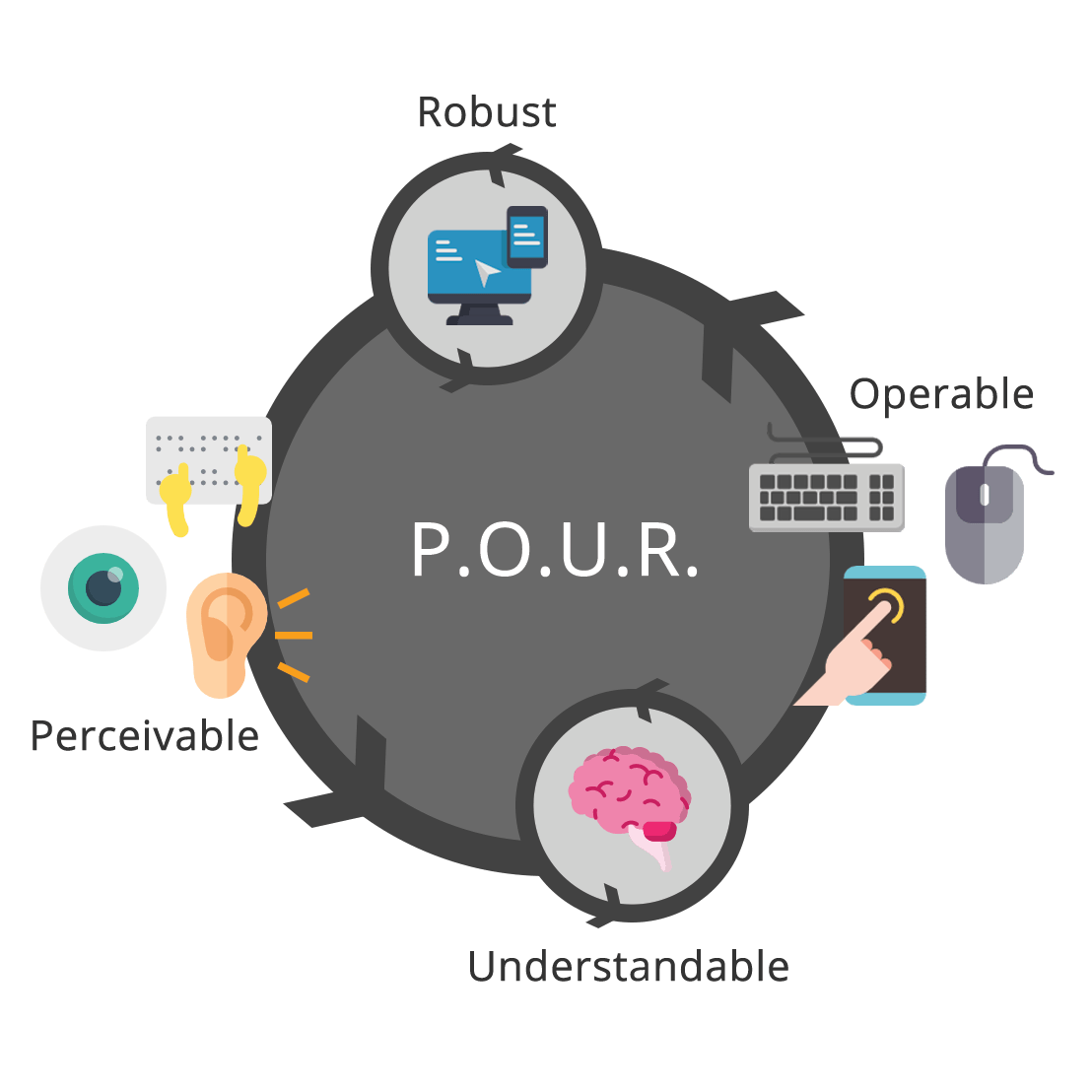
Perceivable
This means that users must be able to perceive the information being presented – it cannot be invisible to all of their senses.
- Questions: Is there anything on our website or app that a person with a disability would not be able to perceive? Does this work with different types of assistive technology devices?
- Examples: adding text alternatives to non-decorative images, adding captions and transcripts to videos, making sure the color is not the only method to convey meaning.
Operable
Users must be able to operate the interface – the interface cannot require interaction that a user cannot perform.
- Questions: Can users control interactive elements of our website/app? Does our website have any traps?
- Examples: using keyboard only navigation, making sure slideshows have all of the controls shown, making sure users have enough time to fill out a form.
Understandable
Users must be able to understand the information as well as the operation of the user interface – the content or operation cannot be beyond their understanding.
- Questions: Is all of the content clearly written? Are all of the interactions easy to understand? Does the order of the page make sense?
- Examples: write content at a 9th-grade reading level, make sure your website is predictable, make sure any error messages on your website are clear and easy to resolve.
Robust
It means that users must be able to access the content as technologies advance – as technologies and user agents evolve, the content should remain accessible.
- Questions: Does our website only support the newest browsers or operating systems? Is our website developed with best practices? Does this work in both landscape and portrait orientations?
- There are no real examples of this…just test your website/app! Be sure to use all types of tools – automatic, manual, AT, and user tests.
What is ARIA and do I really need it?
After WCAG, the next most popular question always revolves around ARIA. Depending on the audience's level of accessibility and/or development knowledge, I get questions that range from: "What is it? Do I really need it? Why can't I just use HTML?"
ARIA is an acronym for "Accessible Rich Internet Applications" and is formally called WAI-ARIA (opens in new tab). It was first developed in 2008 by the Web Accessibility Initiative (WAI) (opens in new tab) group.
ARIA is defined as a collection of attributes to help modify incorrect markup and to bridge gaps in HTML to create more accessible experience those using assistive technology (AT). Correctly incorporating ARIA into your code ensures that assistive technology device users will have all of the information they need to use your website or app.
ARIA can be broken down into:
- Roles – define what an element is or does.
- Properties – express characteristics or relationship of an object.
- States and Values – define the current conditions or data values associated with the element.
Do you need ARIA? Well like a lot of digital accessibility It Depends™. To keep it simple for beginners, at Deque training sessions we repeat the first rule of ARIA (opens in new tab) created by the W3C:
"If you can use a native HTML element or attribute with the semantics and behavior you require already built in, instead of repurposing an element and adding an ARIA role, state or property to make it accessible, then do so."
Or as I like to rephrase it (as I try my best to sound like Brad Pitt in the 1999 movie Fight Club): "First rule of ARIA is: do not use ARIA."
When in doubt, use *supported* HTML elements, then use ARIA. To check for browser compliance, I often reference websites like HTML5 Accessibility (opens in new tab), Can I Use (opens in new tab), or W3C's list of ARIA in HTML attributes (opens in new tab) before making my choice.
What is the best way to add alternative content to images?
The third most popular question usually revolves around alternative text. I am so excited the message is out – images need descriptions! But of course, it can't be that simple. Depending on the type of image, you might need to modify your approach to adding alternative content. The first step is to think about the purpose of your image. Is it to inform a user? Set the "feeling" of the website? Does it perform a function? Figuring out the purpose of your image is not always an easy task, but using image alt decision trees (opens in new tab) can help.
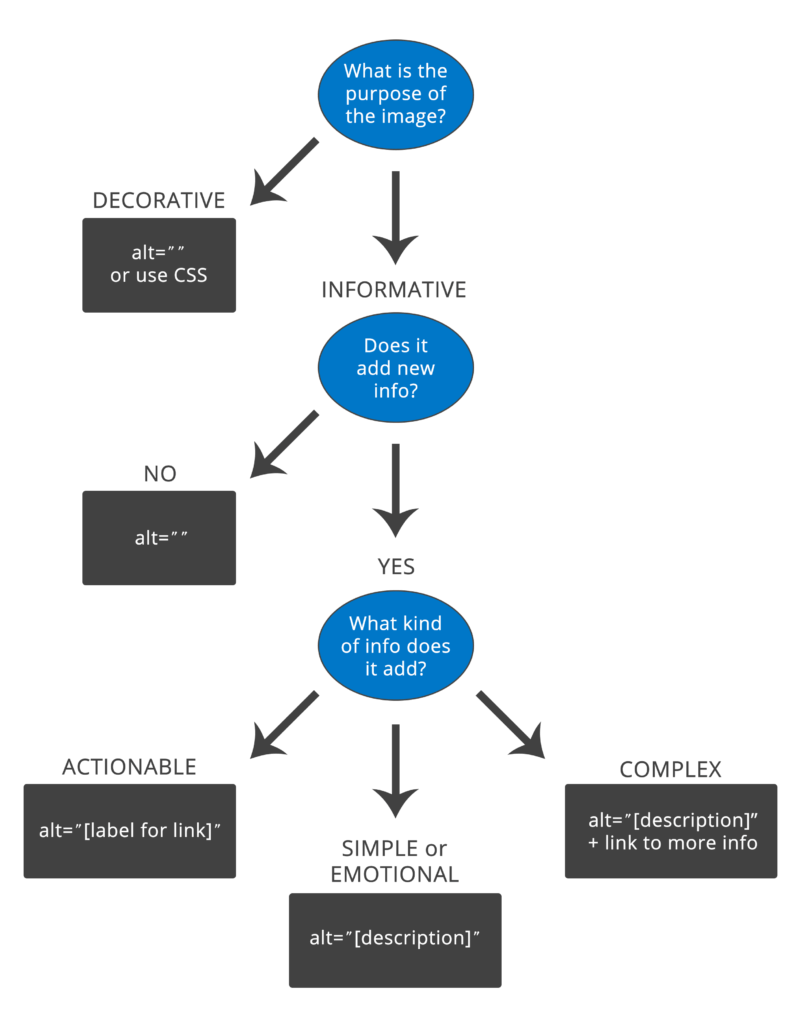
If an image is decorative, you need to hide it from assistive technology devices (ATs). You can use different methods like CSS background images or web fonts. You can also use the <img> tag, but then the decorative image needs to have an empty/null alternative text attribute.
On the other hand, if you decide an image is informative, make sure you include alternative information about the image. There are a lot of different accessible patterns for images (opens in new tab) you can use to achieve this goal, pick the one(s) that works best in your framework or CMS.
When talking about how to write good alternative content, I often use the telephone analogy. If you called up a friend and just said "Brown dog," and hung up the phone your friend might be confused. If you called a friend and said "The brown dog is sitting on the beach," that would paint a more vivid picture without adding too much complexity or work. Of course, a screen reader user will have to listen to your alternative content, so don't go overboard. That is why we suggest that your alt content does not exceed 125 characters.
Why isn't running an automated accessibility tool enough?
People who work in tech love tools. So when people ask me about accessibility tools at trainings and conferences, I am not surprised. They want to push a few buttons and *poof!* summon magical creatures that can go in and find and fix all of their issues. Of course, they don't like my answer that regardless of the tool, automatic testing can only reliably pick-up 30-40% of all accessibility issues (opens in new tab). And some tools are better at picking up some accessibility issues, while others might be better suited for catching other errors, so you really need to run a suite of tools.
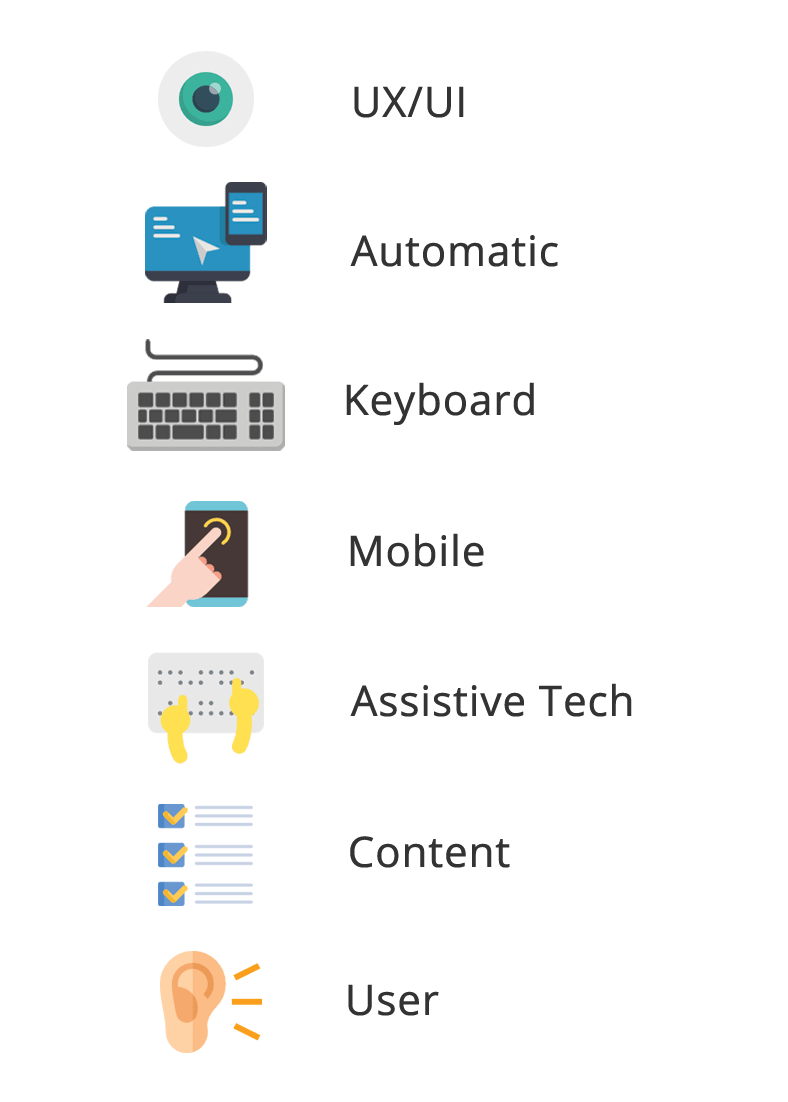
But it is not all bad news! The good news is automated testing tools are truly amazing and getting "smarter" with each new version. There may be a day soon where these tools can reliably catch closer to 100% of all issues and even fix them for you. But until then, you can add UX/UI tests, manual keyboard tests, mobile touch tests, screen reader tests (opens in new tab) (and other ATs), content readability tests, and (I think, most important) user tests to your workflow to cover the gaps automatic testing leaves behind.
What's the deal with mobile accessibility?
Mobile can be very confusing to people new to accessibility and is a topic often brought up in our training sessions. Some people are surprised that visually impaired people use mobile devices for things like surfing the web and checking email. Many had no idea that mobile devices have screen readers – many built right in.
According to WebAIM's latest screen reader survey (opens in new tab), 88% of the people who responded use mobile screen readers on their mobile devices, and that number has grown significantly over the past few years. Of those surveyed, 75.6% preferred iOS devices (ex. iPad, iPhone) with the VoiceOver screen reader followed by Android devices at 22.0% using the TalkBack screen reader. Not only are the numbers of mobile users increasing, but 54% of respondents responded that they use both mobile and desktop screen readers about the same amount of time, making mobile, not just a novelty – but essential to everyday life.
But how do you get started with mobile accessibility? Well, the easiest thing to do is simply grab your smartphone and activate the screen reader! Unlike most desktop screen readers, mobile screen readers typically come installed on your device and are pretty intuitive once you learn a few swipes and tap gestures.
Using VoiceOver on iOS
Turning VoiceOver on
- You can turn VoiceOver on by going to "Settings" > "General" > "Accessibility" > and toggling "VoiceOver" to ON.
- Or you can activate the screen reader with Siri. Go to "Settings" > "Siri & Search" > Set the Listen for "Hey Siri" to on. Then say "Hey, Siri. Turn VoiceOver ON."
Quick demo using VoiceOver
- Touch one finger to your iPhone screen to focus on your main app screen and swipe left to right. VoiceOver will announce the name of the app in focus.
- Once you are on an app you want to open, double tap with one finger anywhere on the screen to launch the app.
Turning VoiceOver off
- You can turn VoiceOver off by going to "Settings" > "General" > "Accessibility" > and toggling "VoiceOver" to OFF.
- Or you can turn off the screen reader with Siri. Just say "Hey, Siri. Turn VoiceOver OFF."
Using TalkBack on Android
Turning TalkBack on
- You can turn TalkBack on by going to "Settings" > "Accessibility" > "TalkBack" and toggle the switch to ON. Note: some Android devices require you to install the TalkBack app first.
Quick demo using TalkBack
- Navigate to an accessible website like the W3C main website (opens in new tab) using either the Chrome or FireFox web browser.
- Swipe one finger from up to down to cycle through the element you want to browse by in TalkBack. In this demo choose "Headings."
- With one finger, swipe left to right to listen to the page headings in order from the top of the page to the bottom. You might notice a tone that gets higher in pitch as you navigate down the page. This helps the AT user get a sense of how long the page is.
- Double click on any heading that can be activated to navigate to a new page.
Turning TalkBack off
- You can turn TalkBack off by going to "Settings" > "Accessibility" > "TalkBack"
- Tap the TalkBack once to select it then double tap the to move the toggle to OFF.
Recap
As you can tell from these five ILT questions/answers, there is a lot to know when it comes to digital accessibility…and this is just the tip of the iceberg! I do hope this article has helped answer some basic questions you might have had about digital accessibility and spurred you to learn more. Finally, I just want to leave you with a note of encouragement. I understand digital accessibility can be overwhelming sometimes, but it is important not to give up hope and to continue to ask questions.
"Alone we can do so little, together we can do so much." – Helen Keller